
How to convert SVG to PDF
svgtopdf.com renders SVG vector graphics into PDF pages. SVG is the format for diagrams, icons, charts, and logos — resolution-independent and text-as-text. svgtopdf preserves that: shapes stay crisp at any zoom in the resulting PDF, and most text remains selectable.
Step 1: Upload
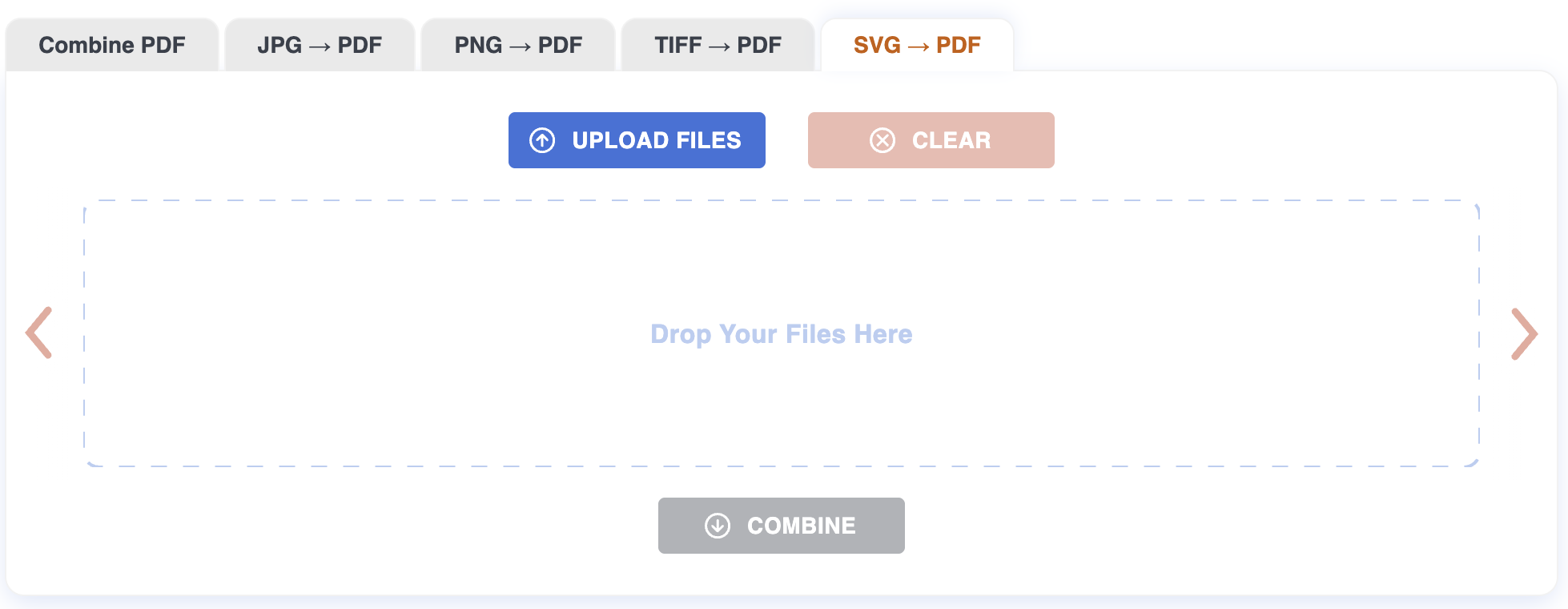
Drag the SVGs onto the page, or click to pick them. Up to 20 files at once, 200 MB each. Conversion starts as soon as the upload finishes.
Step 2: Arrange
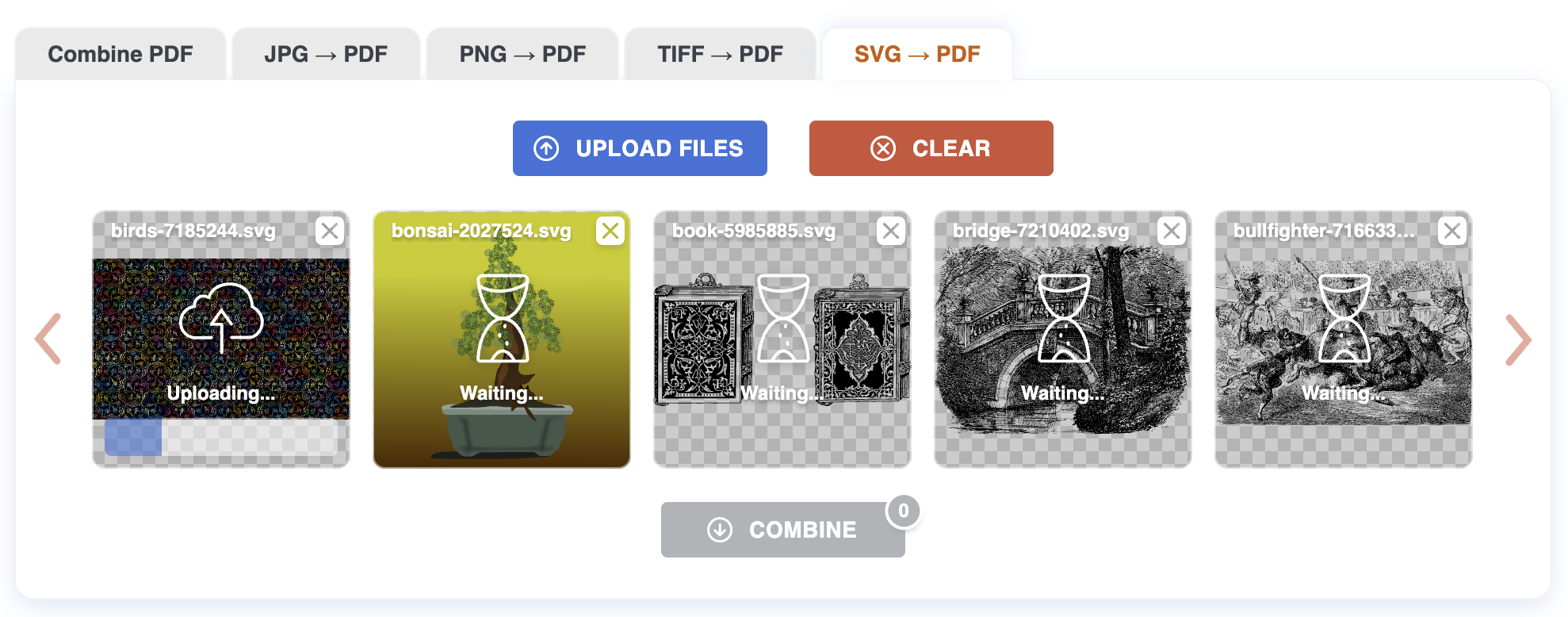
Each SVG appears as a tile with a thumbnail of the rendered page. Drag tiles to set the page order; first tile becomes page 1 in the combined PDF.
Step 3: Download
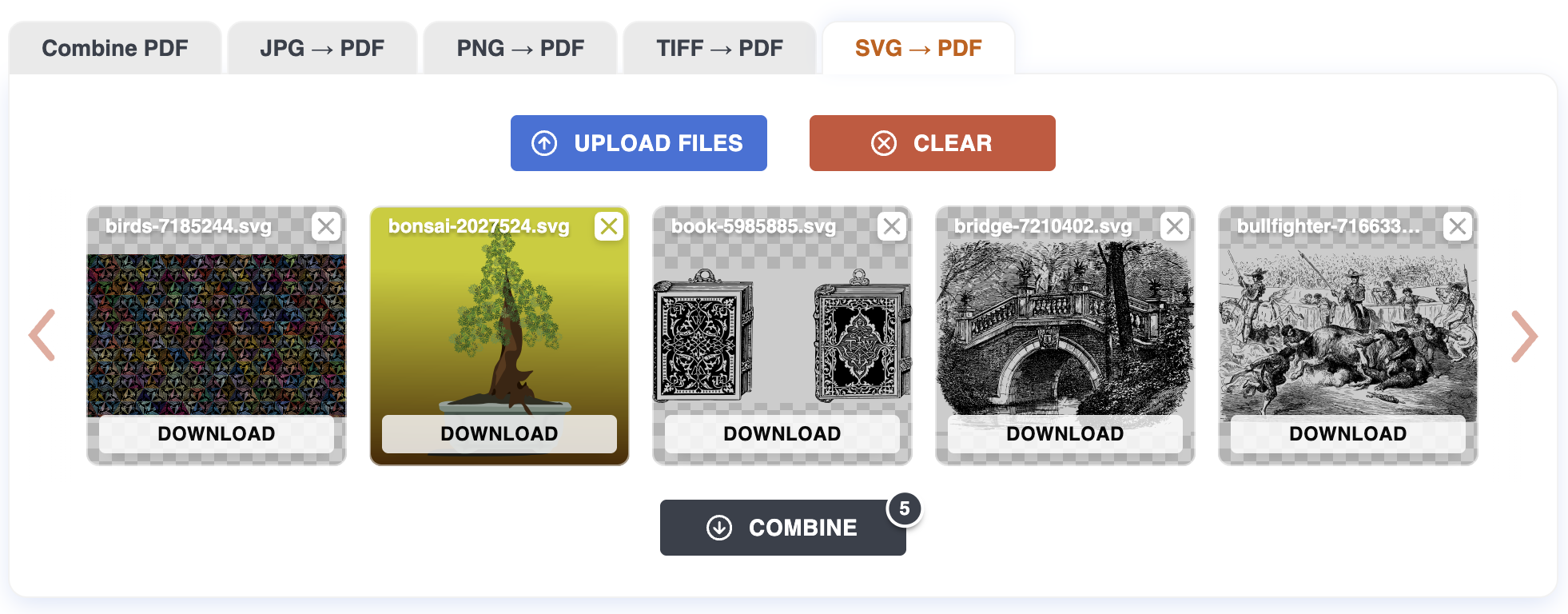
Click Download all for a single PDF containing every SVG as a page, in the order you set. Or use the per-file download to get each SVG as its own one-page PDF.
Tips
- Vectors stay vectors. Strokes and shapes are written as PDF vector objects when possible — the result is sharp at any print size, not a rasterized image.
- Text is preserved when it can be. If the SVG uses standard system fonts, the text remains selectable in the PDF. Custom web fonts fall back to the closest match.
- Page size follows the SVG. The PDF page is fitted to the SVG's
width/height(or itsviewBox), preserving aspect ratio. A 1000×500 SVG produces a wide page. - Transparency and gradients render correctly. Most SVG features — opacity, linear/radial gradients, masks, clip paths — come through as expected.
What can be tricky
External web fonts. If your SVG references Google Fonts or another CDN, those won't load on the server. Either embed the font as a data URI inside the SVG, or accept a system-font fallback.
Filters and complex effects. SVG filters (feGaussianBlur, feColorMatrix, etc.) are rasterized at render time. The result is correct but no longer scalable for that region.
Embedded raster images. If your SVG contains an <image> tag, that part keeps its original resolution — only the vector parts stay sharp at all zooms.
What won't work
Files over 200 MB. Most SVGs are kilobytes, not megabytes — if yours is huge, it likely contains embedded raster data or is generated machine output. Simplify it first.
Scripts inside SVG. JavaScript inside <script> tags is ignored. The SVG renders as static art only.
Animations. Only the first/static frame is rendered.
Malformed XML. SVGs that don't parse won't convert. Open the file in a browser first — if it shows nothing, fix the source.
Privacy
Files are uploaded over HTTPS and processed on our server. Both the originals and the resulting PDF are deleted automatically after one hour. No account required.
For more on how SVG-to-PDF rendering works, see the Blog.